Author: lp5xom3al8yh

  • taro-plugin-vue

    taro-plugin-vue

    A customized @vitejs/plugin-vue for building component libs for Taro.

    构建及打包 Taro 第三方 Vue 3.0 组件的定制版 @vitejs/plugin-vue

    背景

    taro-ui-vue3 时,其实已经踩过了 Taro Vue 第三方组件一些出现率比较频繁的坑,其中一个就是在 Taro 项目(h5 或小程序)中使用第三方组件时,发现无法解析某个组件,例如:[Vue-warn]: Failed to resolve component: swiper

    导致这一问题的原因,通常是编译配置的问题。Taro Vue 第三方组件库(基于 SFC template)的编译,应采用与 @tarojs/mini-runner@tarojs/webpack-runnervue-loader 编译配置相同的配置。

    为了避免 Taro Vue 第三方组件生态圈重复踩坑,现将 taro-ui-vue3 feat/sfc 分支 采用的编译配置提炼出来,方便 Taro Vue 第三方组件库开发者使用。

    taro-plugin-vue 其实是基于 @vitejs/plugin-vue 的一个 vite 插件,针对 Taro Vue 第三方组件的 SFC 模板编译进行配置,仅适用于采用 vite 构建和打包的场景。

    如果你熟悉 Taro 的 vue-loader 编译配置,亦可直接将相关配置作为参数传递给 @vitejs/plugin-vue 插件即可,无需使用 taro-plugin-vue 插件。

    安装

    yarn add -D taro-plugin-vue @vitejs/plugin-vue

    使用

    taro-plugin-vue@vitejs/plugin-vue 的参数 Option 的基础上新增了一个 h5?: boolean 项,用于控制编译的平台。用法和其他参数与 @vitejs/plugin-vue 相同。

    // vite.config.js
    const { vuePlugin } = require('taro-plugin-vue')
    
    export default {
      plugins: [
        // 编译至小程序平台
        vuePlugin() 
    
        // 编译至 h5 平台
        vuePlugin({ h5: true }) 
    
        // 自行配置编译参数,覆盖默认的编译配置
        vue({
          template: {
            transformAssetUrls: {
              video: ['src', 'poster'],
              'live-player': ['src'],
              // ...
            },
            compilerOptions: {
              isNativeTag: ...,
              nodeTransforms: [...]
            }
          }
        })
      ],
      //...
    }

    默认编译配置

    • h5

      const options: Options = {
        template: {
          ssr: false,
          transformAssetUrls: transformH5AssetUrls,
          compilerOptions: {
            mode: "module",
            optimizeImports: true,
            nodeTransforms: [transformH5Tags()] // 详见 src/transforms.ts
          }
        }
      }
    • 小程序

      // mini-apps
      const options: Options = {
        template: {
          ssr: false,
          transformAssetUrls: transformMiniappAssetUrls,
          compilerOptions: {
            mode: "module",
            optimizeImports: true,
            isNativeTag: isMiniappNativeTag // 详见 src/transforms.ts
          }
        }
      }

    其他用法

    本 repo 还导出了专门针对 Taro Vue 3.0 SFC 模板编译的一些 transform 函数,详情如下。

    这些函数可用于 @vitejs/plugin-vue 插件配置, 亦可用于 vue-loader 配置。

    /**
     * Transform mini-app asset urls.
     * @see https://github.com/NervJS/taro/blob/next/packages/taro-mini-runner/src/webpack/vue3.ts#L43-L50
     */
    export declare const transformMiniappAssetUrls
    
    /**
     * Transform H5 asset urls.
     * @see https://github.com/NervJS/taro/blob/next/packages/taro-webpack-runner/src/config/vue3.ts#L49-L62
     */
    export declare const transformH5AssetUrls
    
    /**
     * Declare native mini-app tags, so that miniapp native components
     * such as `picker`, `swiper`, `scroll-view` and etc.
     * will be treated as native tags, thus not to be resolved as components.
     */
    export declare function isMiniappNativeTag(tag: string): boolean;
    
    /**
     * Transform tags for h5 components.
     * For example, tag `view` will be transformed to `taro-view`,
     * so that it will be compiled to `resolveComponent('taro-view')`.
     */
    export declare function transformH5Tags(): NodeTransform;
    
    /**
     * Transform `taro-env` or `taroEnv` prop,
     * and remove node that is not for the specified platform
     * @param platform `'mini' | 'h5'`
     */
    export declare function transformEnv(platform?: 'mini' | 'h5'): NodeTransform;
    
    /**
     * Transform `onClick` to `onTap` on native tags.
     */
    export declare const transformClick: NodeTransform;

    Visit original content creator repository

  • ansible-openresty

    Ansible Openresty

    galaxy Build Status

    Docker repository: quantmind/openresty

    Ansible role to create openresty docker images and install openresty and configuration files on target machines.

    Table of Contents generated with DocToc

    Create Image

    To create an image the openresty_create_image must be set to true (default is false). An example playbook:

    - name: Create the docker image for openresty
    
      hosts: nginx
    
      vars:
        openresty_create_image: true
    
      roles:
        - quantmind.openresty
    

    When an image is created the nginx.conf file is also populated.

    Variables Only

    To prevent installation, set openresty_install=false. In this configuration the role can be used only for the variables it specifies.

    Install sites

    When openresty_create_image is set to false (the default value) and openresty_install is set to true (the default value) the role installs

    • Nginx configuration files for web sites in openresty_volume_nginx_config_path
    • SSL server certificates in openresty_volume_nginx_ssl_path
    • Html/static assets in openresty_volume_nginx_html_path

    Configuration files

    These are defined in the services list variable. The list contains objects with schema:

    {
        "domain": "value of server_name in server directive",
        "certificate": "S3 key of SSL certificate",
        "lines": []
        "locations": [],
        "redirects": []
    }
    • If domain is specified, the service entry creates a new configuration file for an nginx server block, otherwise it is ignored by this role.
    • When certificate is available the server block is configured to listen on port 443 over a TLS connection. The certificate is downloaded from the certificate_bucket and key given by certificate.
    • lines is an optional list of lines to add to the server block. Semicolon should be excluded form the line. For example::
            ["error_page 500 502 503 504 /custom_50x.html"]
      
      adds a configuration line for a custom template.

    location

    The location object inside a service object has the following schema:

    {
        "location": "the location path or regex, required",
        "s3location": "Optional s3location",
        "host": "Optional host, used in proxy_pass directive",
        "port": "Optional port, required when host is used"
    }
    • When the location.host is available, the location is configured as proxy_pass and the location.port must be available for correct configuration.
    • When the location.lines is available, the location is configured with the lines given (an array of string configuring the location).
    • When the location.s3location is available, the location serves static assets from AWS S3.

    redirect

    A redirect is an object in trhe servic.redirects list. As the name suggests, this entry adds a redirect directive inside the server.

    {
        "from": "local path to redirect from",
        "to": "local path to redirect to",
        "filename": "Optional filename for the SSL certificate, if not provided, the from value is used"
    }

    Openresty Docker

    Openresty provides an official docker image from which the ansible Dockerfile.j2 template is produced.

    Visit original content creator repository
  • CramersRule

    Cramer’s Rule

    A Calculator to solve square matrices systems using Cramer’s Rule and Laplace’s Theorem. This script is designed to assist in the study and resolution of exercises in Linear Algebra classes.

    The code was inspired in this calculator in C++ made by RafaelGSS: https://github.com/RafaelGSS/CramerMethod

    How it works

    1. Clone this repository and start program the program by running (Python 3.7 is required):

    # Python 3.7 is required. If you don't have it, read the Python docs to install.
    # https://www.python.org/downloads/release/python-370/
    $ python main.py # If Python 3 is default
    $ python3 main.py # If you have Python 2 installed as default
    1. Enter the Matrix Order:

    # Enter the Matrix Order:
    $ 3
    1. Enter the Matrix formatted with SPACES (for columns) and ENTERS (for lines):

    # Enter the Matrix formatted with SPACES (for columns) and ENTERS (for lines):
    $ 1 -2 -2
    $ 1 -1 1
    $ 2 1 3
    1. Enter the respective results for LINES separated by SPACES:

    # Enter the respective results for LINES separated by SPACES:
    $ -1 -2 1
    1. Check if your system is mounted correctly and Enter Y for YES or N for NO (YES is default):

    # Check if your system is mounted correctly:
    #
    # 1.0   -2.0   -2.0   =   -1.0 
    # 1.0   -1.0   1.0    =   -2.0
    # 2.0   1.0    3.0    =   1.0
    #
    # Enter Y for YES or N for NO (YES is default):
    $ Y
    1. The main determinant, all matrices with the substitutions and their respective determinants will be displayed.

    # Main Matrix Determinant: -8.0
    #
    # Matrix with replacement at COLUMN 1:
    # -1.0  -2.0   -2.0 
    # -2.0  -1.0   1.0
    # 1.0   1.0    3.0
    # Determinant of this matrix: -8.0
    #
    # Matrix with replacement at COLUMN 2:
    # 1.0   -1.0   -2.0
    # 1.0   -2.0   1.0
    # 2.0   1.0    3.0
    # Determinant of this matrix: -16.0
    #
    # Matrix with replacement at COLUMN 3:
    # 1.0   -2.0   -1.0 
    # 1.0   -1.0   -2.0
    # 2 .0   1.0    1.0
    # Determinant of this matrix: 8.0
    1. And finally, the solution set will also be displayed at the end of the program.

    # Solution set:
    # A1 = 1.0
    # A2 = 2.0
    # A3 = -1.0

    Visit original content creator repository

  • armory_gh_actions

    Armory3D Github Actions

    This action sets up a armory3d environment to build projects in your github workflows.

    Usage

    See action.yml

    Inputs

    Name Description Required Default
    blend Main blend file Yes
    build Build exporter name No The active armory exporter
    publish Publish exporter name No The active armory exporter
    blender Blender version (snap) No 3.3lts/stable
    armsdk_url URL of to the armsdk repository No https://github.com/armory3d/armsdk
    armsdk_ref Named branch, tag, or SHA of the armsdk repository No main

    Either build or publish must be given the name of an exporter preset defined in Render Properties - Armory Exporter. It can have any name, but is most likely named after the build target.

    Outputs

    Name Description Default
    code Exit code
    time Duration ms
    result stdout data
    error stderr data


    See: .github/workflows/empty-project.yml

    Publish project

    jobs:
      build:
        runs-on: ubuntu-latest
        steps:
          - uses: actions/checkout@v3
          - name: Publish
            uses: armory3d/armory_gh_actions@v0.1.15
            with:
              blend: awesome.blend # Main blend file
              publish: html5 # Name of the armory exporter

    Custom blender, armsdk version

    jobs:
      build:
        runs-on: ubuntu-latest
        steps:
          - uses: actions/checkout@v3
          - name: Publish
            uses: armory3d/armory_gh_actions@v0.1.15
              with:
                blend: awesome.blend # Main blend file
                publish: linux # Name of the armory exporter
                blender: latest/candidate  # Blender snap package version
                armsdk_ref: 22.09 # Armsdk version

    Cache armsdk to speedup builds, print build results

    jobs:
      build:
        runs-on: ubuntu-latest
        env:
          armsdk_version: 22.09
        steps:
          - uses: actions/checkout@v3
          - name: Cache armsdk
            uses: actions/cache@v2
            env:
              armsdk-cache-version: ${{ env.armsdk_version }}
            with:
              path: _armsdk_
              key: armsdk-cache-${{ env.armsdk-cache-version }}
          - name: Build
            id: awesome
            uses: armory3d/armory_gh_actions@v0.1.15
            with:
              blend: awesome.blend
              publish: html5
              armsdk_ref: ${{ env.armsdk_version }}
          - name: Result
            run: |
              echo "Code: ${{ steps.awesome.outputs.code }}"
              echo "Time: ${{ steps.awesome.outputs.time }}"

    test

    Visit original content creator repository

  • toaster-js

    Toaster-JS

    npm Dependencies BundleSize npm License

    The simple vanilla JavaScript toast pop-up notifications module, which is fully CSS-customizable. The solution which “just works”: add the module to your project and go further.

    Supported by all major browsers. Safe to use with ReactJS and other virtual-dom frameworks.

    Preview

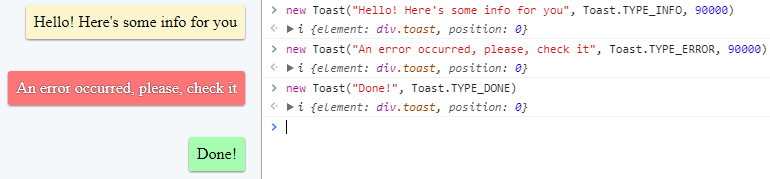
    Screenshot

    Features

    • Fully CSS-customizable toast pop-ups for any design;
    • No dependencies and < 1kb code;
    • Configurable toasts type and timeout;
    • Fully configurable toast content (HTML, custom elements, etc).

    Installation & Usage

    Toaster-JS is primarily the uncompiled ES6 module. Install it with npm:

    npm install toaster-js

    Then, include it to your project:

    import { Toast } from "toaster-js"; // const { Toast } = require("toaster-js/umd.js");
    import "toaster-js/default.scss"; // Assuming CSS/SCSS loader is present
    // Import styles from SCSS: @import "../node_modules/toaster-js/default.scss";
    // Or just copy default styles to your project from node_modules/toaster-js/default.*css. 
    // Or draw your own styles! For instance, you can make toasts appear on the left by overwriting .toast { left: 0; right: auto; }
    
    // Simple toast
    new Toast("Welcome!");
    
    // Typed toast (just a matter of CSS) with timeout
    new Toast("There is a lot of toasts!", Toast.TYPE_ERROR, Toast.TIME_NORMAL);
    
    // Custom toast content example (you can also add something like close buttons, etc)
    let element = document.createElement("div");
    element.textContent = "You can pass any HTML elements to Toast. Clicking on this one deletes it!";
    let newToast = new Toast(element, Toast.TYPE_MESSAGE);
    element.addEventListener("click", () => newToast.delete()); // delete a toast on message click!

    You can set up additional options if you need. See the API section below for more details.

    import { configureToasts, deleteAllToasts } from "toaster-js";
    
    configureToasts({
        topOrigin: 0,
        deleteDelay: 300
    });
    deleteAllToasts(); // just deletes all toasts on the screen

    If you need to load ES5 (UMD) module, use the following:

    const { Toast } = require("toaster-js/umd.js");

    If you need to include the module with a script tag (for example, for demos), use this:

    <script type="text/javascript" src="https://unpkg.com/toaster-js/umd.js"></script>
    <link rel="stylesheet" href="https://unpkg.com/toaster-js/default.css"/>

    API

    • toast = new Toast(content, type, timeout)
      • Toast.TIME_SHORT (2000 ms)
      • Toast.TIME_NORMAL (4000 ms)
      • Toast.TIME_LONG (8000 ms, default)
      • Toast.TYPE_INFO
      • Toast.TYPE_MESSAGE
      • Toast.TYPE_WARNING
      • Toast.TYPE_ERROR
      • Toast.TYPE_DONE
      • toast.delete() – Deletes this toast from the DOM.
    • configureToasts(options)
      • options.topOrigin = 0 – A number in pixels of toasts Y-axis origin (negative values move toasts up).
      • options.deleteDelay = 300 – A number representing delay in milliseconds. When toast is deleted, it stays in DOM for deleteDelay more milliseconds. Useful with CSS animations.
    • deleteAllToasts() – Deletes all toasts on the screen.
    Toast(content, type, timeout)

    Creates a new toast notification message on the screen. Pass a string content to specify the message text, type = Toast.TYPE_* to specify the type and timeout = Toast.TIME_* to specify the timeout. Timeout constants are the numbers of milliseconds for message to stay on screen. For example, new Toast("Baked!", Toast.TYPE_ERROR, 10000) message will stay on the screen for 10 seconds.

    • TIME_SHORT = 2 seconds
    • TIME_NORMAL = 4 seconds
    • TIME_LONG = 8 seconds
    • TYPE_INFO = "info"
    • TYPE_MESSAGE = "message"
    • TYPE_WARNING = "warning"
    • TYPE_ERROR = "error"
    • TYPE_DONE = "done"

    When content is a valid DOM Element, it will be attached to the message’s body directly, allowing you to customize toast however you want.

    configureToasts(options)

    Allows to configure some options of the toast. The available optional options are listed below:

    configureToasts({
        topOrigin: -100, // [default=0] Y-axis origin of the messages (better to use CSS `transform` instead).
        deleteDelay: 300 // time until the toast is completely removed from the DOM after deleting. 
    });

    Styles

    Import default toast styles from node_modules/toaster-js/default.*css (CSS, SCSS are available).

    To style the toast properly, consider that toast elements (for example, info toasts) have three states: empty state (when the toast attaches to the DOM), displayed state (when the toast is moved to its proper position), and deleted state, when the toast “fades out” from the DOM. You can control how much time the toast stays in deleted state until it disappears using deleteDelay option. States:

    <div class="toast">        <div class="body warning">...</div> </div>
    <div class="toast displayed"> <div class="body info">...</div> </div>
    <div class="toast deleted">   <div class="body done">...</div> </div>

    Contributing

    Feel free to improve this project! Building the umd.js and default.css requires the following:

    npm install
    npm run build

    License

    MIT © Nikita Savchenko

    Visit original content creator repository
  • character-picker

    Character Picker for Windows

    doc/images/theta.png

    A quick and convenient pop-up interface that allows you to search for and type Unicode characters.

    Installation

    The ready-made files can be downloaded from the releases page (choose character-picker-YY-MM-DD.zip).

    The exe file must be run in the same folder as the characters.txt file.

    In order to be useful, you should bind a keyboard shortcut to execute the character
    picker so that you can quickly access it anywhere on demand. For instance, you could
    download AutoHotKey and create a script (.ahk file) that runs on
    system startup.

    Here is an example of such a script:

    ; Runs the program when Ctrl+Win+Space is pressed
    ; Also see: http://www.autohotkey.com/docs/Hotkeys.htm
    ; Important to set the working directory to the same folder as the `characters.txt` file
    
    #^Space::
      SetWorkingDir c:\Users\luis\mdata\util\character-picker
      Run "C:\Users\luis\mdata\util\character-picker\picker.exe"
      Return
    

    After installing AutoHotKey, you can double-click the script file for the shortcuts to
    take effect. Then, you can create a shortcut to this file (Ctrl+Shift+drag) and move it to the Start-up
    folder which can be accessed by typing shell:startup into the Run box (Windows+R).

    Usage

    While the program is open, your keystrokes will be captured by the search box.
    The search allows exact matches using double quotes (e.g. ​"latin capital"​ ),
    as well as basic natural query language (e.g. ​(greek AND letter) OR "latin capital"​ ).
    Note that you may need to type in an entire word before getting any matches.

    To type a character, you can click on it or press Enter to type the selected character.

    To change the selection, use the keybindings Ctrl+h (left), Ctrl+j (down), Ctrl+k (up) and Ctrl+l (right).

    To close the window, click the cross, press Escape, or press Ctrl+g.

    You can resize the window and scroll the results if needed.

    Configuration

    The characters.txt has the following format:

    • One line per character
    • Each line consists of the character, then a space, then a description

    Example:

    Δ GREEK CAPITAL LETTER DELTA
    

    These descriptions power the search function, so you can modify the description of a character to make it easier to search for.
    Additionally, you can remove lines with any characters that you do not want to show up, or simply start afresh with a minimal list of useful characters.

    Building from Source

    This character picker is a simple Rust program that can be built using cargo.
    Note that it depends on a custom version of the druid crate found here.

    The characters.txt file can be generated from the DerivedName.txt file which can be downloaded from the Unicode website.
    Then, execute extractor/extract_chars.clj in the same directory using, for instance, Babashka.

    License

    Copyright © 2021 Luis Thiam-Nye.

    Distributed under Eclipse Public License 2.0, see LICENSE.

    Visit original content creator repository

  • database-scala

    Base de datos (Scala)

    Conexion a la base de datos

    1. crear una carpeta dentro de main con un archivo .conf
    src/main/resources/application.conf
    1. El contenido del archivo debe ser las credenciales

    db {
      user = "root"
      password = "pontificie"
      urlMaestro = "jdbc:mariadb://localhost:3307/proyecto_aula"
      urlEsclavo = "jdbc:mariadb://localhost:3307/proyecto_aula"
    }

    Instalación de Docker, MariaDB y Docker Compose en Ubuntu

    Paso 1: Instalar Docker

    1. Actualiza tu lista de paquetes existente:
    sudo apt-get update
    1. Instala los paquetes necesarios que permiten a apt usar paquetes a través de HTTPS:
    sudo apt-get install apt-transport-https ca-certificates curl software-properties-common
    1. Agrega la clave GPG para el repositorio oficial de Docker a tu sistema:
    curl -fsSL https://download.docker.com/linux/ubuntu/gpg | sudo apt-key add -
    1. Agrega el repositorio de Docker a las fuentes de APT:
    sudo add-apt-repository "deb [arch=amd64] https://download.docker.com/linux/ubuntu $(lsb_release -cs) stable"
    1. Actualiza el paquete de la base de datos con los paquetes Docker del repositorio recién agregado:
    sudo apt-get update
    1. Asegúrate de que vas a instalar desde el repositorio de Docker en lugar del repositorio predeterminado de Ubuntu:
    apt-cache policy docker-ce
    1. Finalmente, instala Docker:
    sudo apt-get install -y docker-ce
    1. Docker ahora debería estar instalado, el demonio iniciado y el proceso habilitado para iniciar en el arranque. Verifica que esté funcionando:
    sudo systemctl status docker

    Paso 2: Instalar MariaDB

    1. Actualiza tu lista de paquetes existente:
    sudo apt-get update
    1. Luego instala MariaDB con el siguiente comando:
    sudo apt-get install mariadb-server
    1. Asegúrate de que MariaDB esté funcionando con el comando systemctl start:
    sudo systemctl start mariadb.service

    Paso 3: Instalar Docker Compose

    1. Descarga la versión más reciente estable de Docker Compose ejecutando este comando:
    sudo curl -L "https://github.com/docker/compose/releases/download/1.29.2/docker-compose-$(uname -s)-$(uname -m)" -o /usr/local/bin/docker-compose
    1. A continuación, aplica permisos ejecutables al binario:
    sudo chmod +x /usr/local/bin/docker-compose

    Configuración de Replicación en MariaDB

    1. Configuración del Maestro:

    # Editar el archivo de configuración de MariaDB
    sudo nano /etc/mysql/mariadb.conf.d/50-server.cnf
    
    # Establecer el identificador único del servidor (server_id)
    server_id = 1
    1. Configuración del Esclavo:

    # Editar el archivo de configuración de MariaDB
    sudo nano /etc/mysql/mariadb.conf.d/50-server.cnf
    
    # Establecer el identificador único del servidor (server_id)
    server_id = 2
    1. Creación de un Usuario de Replicación:

    # Acceder a MariaDB como usuario root
    mysql -u root -p
    
    # Crear un usuario de replicación y asignarle los privilegios necesarios
    CREATE USER 'replication_user'@'%' IDENTIFIED BY 'password';
    GRANT REPLICATION SLAVE ON *.* TO 'replication_user'@'%';
    1. Obtención de la Información del Maestro:

    # Acceder a MariaDB como usuario root
    mysql -u root -p
    
    # Obtener la posición binaria actual y la identificación del maestro
    SHOW MASTER STATUS;
    1. Configuración del Esclavo con la Información del Maestro:

    # Acceder a MariaDB como usuario root en el esclavo
    mysql -u root -p
    
    # Configurar el esclavo usando la información del maestro (posición binaria y identificación)
    CHANGE MASTER TO MASTER_HOST='master_ip', MASTER_USER='replication_user', MASTER_PASSWORD='password', MASTER_LOG_FILE='binlog_file', MASTER_LOG_POS=binlog_position;
    1. Iniciar la Replicación en el Esclavo:

    # Acceder a MariaDB como usuario root en el esclavo
    mysql -u root -p
    
    # Iniciar la replicación en el esclavo
    START SLAVE;

    Ejecución del Proyecto Scala en Docker

    1. Construir la Imagen Docker:

    # Construir la imagen Docker
    docker build -t myproject .
    1. Ejecutar el Contenedor Docker:

    # Ejecutar el contenedor Docker
    docker run -d -p 8080:8080 myproject

    Docker compose

    Docker-compose

    Docker maestro

    Dockerfile

    Conexión a la base de datos

    Conexión

    Dependencias del proyecto

    Dependencias

    Visit original content creator repository

  • react-widgets

    React Widgets

    Table of Contents

    Technologies Used

    • React.js – Frontend JavaScript library
    • Webpack – Module bundler
    • @babel/core – JavaScript coverter for backwards compatibility
    • Geolocation API – Request user’s current location and
    • Open Weather API – Fetch free weather data for the user’s location

    Widgets

    Clock

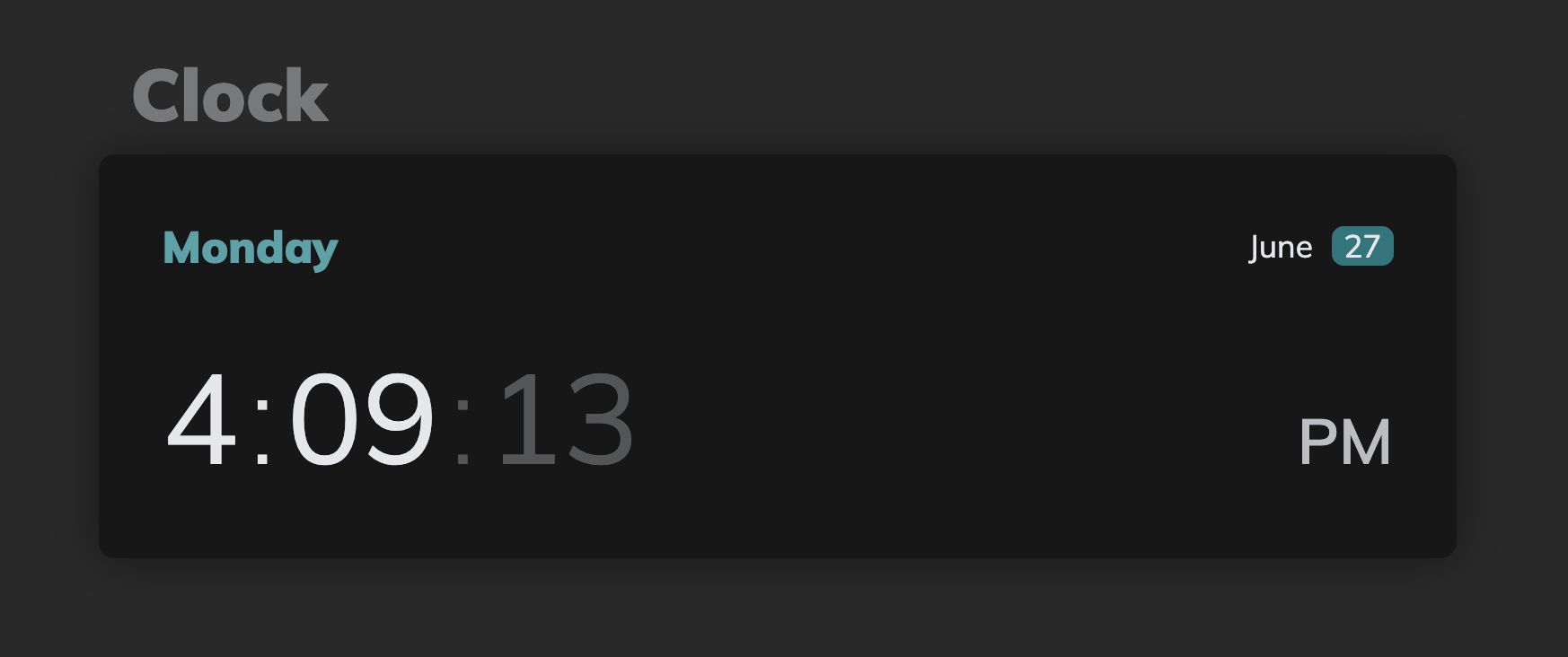
    The Clock component displays the current date and time, updating every second.

    • Date
      • Weekday (full length)
      • Month (full length)
      • Calendar date (two digit integer)
    • Time
      • Seconds, minutes, and hours (in 12-hour format)
      • AM/PM indicator


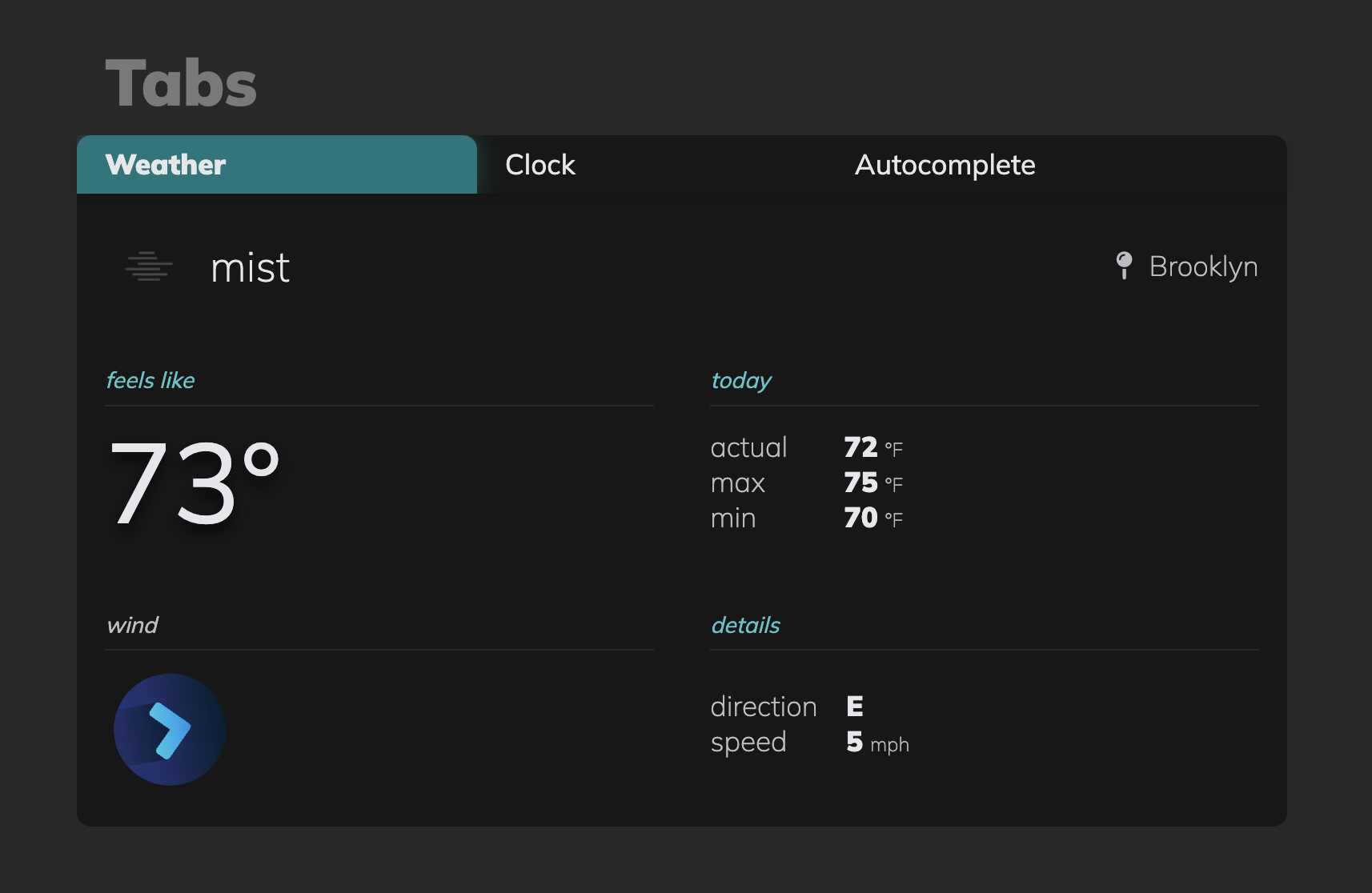
    Weather

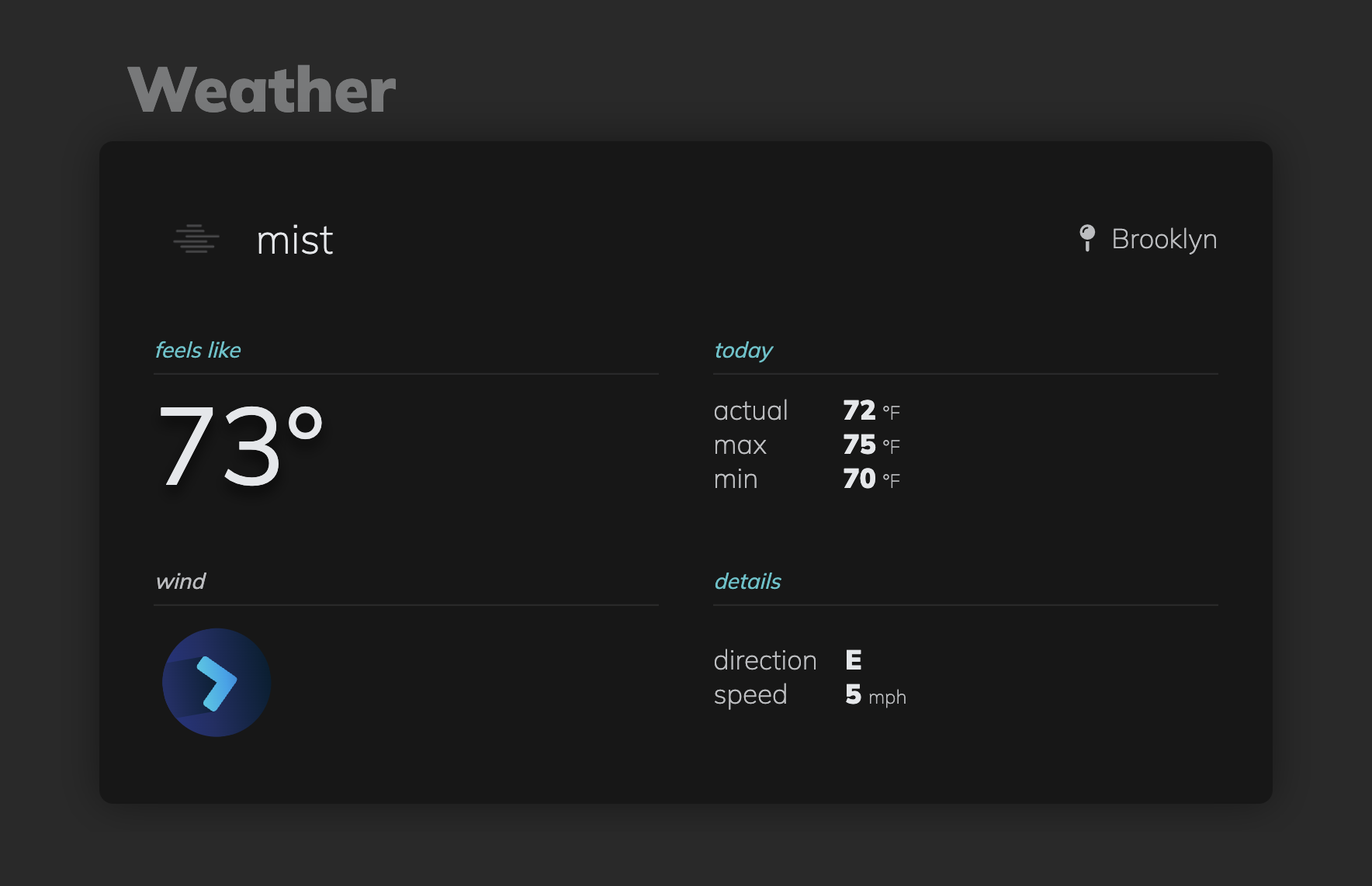
    The Weather component provides local weather data in an organized and digestible fashion. Weather data includes:

    • Description
      • Short description of the current weather conditions along with a relevant icon
      • Current location being used for weather data
    • Temperatures (all in fahrenheit)
      • feelsLike – what it currently ‘feels like’
      • actual – what the actual current temperature is
      • max and min – highest and lowest temperatures for the current date
    • Wind
      • Directional arrow icon that is rotated based on the current direction of wind
      • Two letter abbreviations for the compass direction of the current wind
      • Speed of current wind (imperial miles/hr)
      • Gusts (imperial miles/hr), only if there are high wind gusts in the forecast


    AutoComplete

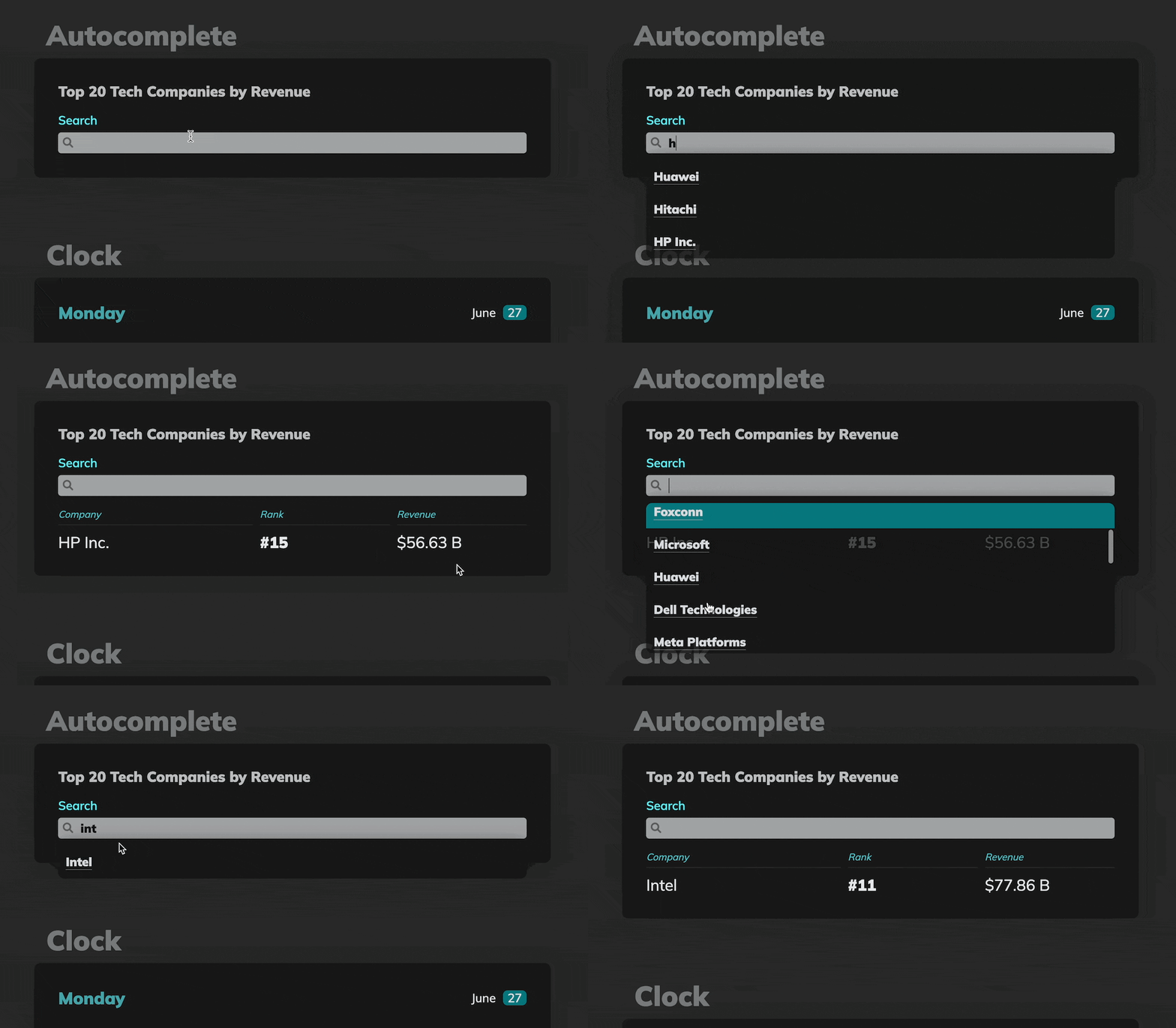
    The AutoComplete component filters a list of names based on the user’s input. Matches are detected by comparing the user’s input to the list of names, each sliced to the length of input and checked for equality. When a user clicks on the recommended name, the field autocompletes the name and displays the company’s data below the search bar.

    • Suggestions
      • Absolute positioned list of company names recommened based on user’s input
      • onClick event handler to complete the search and render the company data
    • Dynamic Lists
      • The array of names suggested are provided as props, and therefore can easily be changed
      • Format of the company names accepted as props:
        [{ name: "Apple", revenue: "$274.5 B" }, ...]

    autocomplete-widget


    Tabs

    The Tabs widget is an interactive container that dynamically displays content based on the label selected by the user.

    • Dynamic Props
      • Tabs are passed as props formatted as an array objects, each with a title (string) and content (React Components or HTML Elements):
      [{title: "Weather", content: <Weather type='tab' />}, ...]
    • Active Tabs
      • Selected tab index stored in component’s state
      • The actively selected tab is styled with a blue background, box-shadow, and bold text


    Visit original content creator repository
  • wp-api-starter-theme

    WP API Starter Theme (BETA VERSION 1.0.0)

    WordPress starter theme with WP API components and templates, Tailwind CSS, and a modern development workflow. This WordPress theme is interesting for local testing, studies and code improvements. Please do not use this theme in production, use these themes for student purposes.

    Sponsors

    WP API Starter Theme is an open source project and completely free to use.

    However, the amount of effort needed to maintain and develop new features and products within the ecosystem is not sustainable without proper financial backing. If you have the capability, please consider sponsoring Flaubert Dev.

    Features

    Requirements

    Make sure all dependencies have been installed before moving on:

    Theme installation

    Fork or download this WordPress theme in your themes folder. If you download by git clone, don’t forget to remove the .git folder:

    git clone git@github.com:flaubert-dev/wp-api-starter-theme.git

    If you don’t know if Gulp CLI and Yarn are already installed globally, run the command below:

    npm list -g --depth=0

    If Gulp CLI and Yarn are not installed globally, run the command:

    npm install gulp-cli -g && npm install yarn -g

    With Gulp CLI and Yarn already installed, run the command below:

    yarn cache clean && yarn install && npx update-browserslist-db@latest

    Linux and MacOs Users

    Theme development

    In the gulpfile.js file, modify the path of your development environment:

    browserSync.init({
      proxy: 'http://localhost/success', // Change to your local development URL
      open: true // true will automatically open the browser on port 3000
    });

    Dev command

    Log in as an Administrator on your WordPress. Use this command to watch at your php, css and js files:

    yarn dev

    Build command

    To build the project use the command below. If you are not logged into WordPress, you will see that the css and js files have been minified:

    yarn build

    Theme structure

    themes/wp-api-starter-theme/  
    ├── app/                           
    │   ├── AcfJson/ # -> https://www.advancedcustomfields.com/resources/local-json/             
    │   └── Templates/      
    ├── config/                
    ├── resources/         
    │   ├── fonts/        
    │   ├── images/        
    │   ├── scripts/      
    │   └── styles/          
    ├── templates/      
    ├── vendor/     
    ├── .gitattributes
    ├── .gitignore
    ├── 404.php # -> Wait... News will come in this file
    ├── archive.php      
    ├── category.php      
    ├── composer.json      
    ├── footer.php      
    ├── functions.php      
    ├── gulpfile.js      
    ├── header.php      
    ├── index.php          
    ├── LICENSE          
    ├── package.json        
    ├── page.php # -> Wait... News will come in this file
    ├── README.md       
    ├── readme.txt       
    ├── screenshot.png       
    ├── search.php # -> Wait... News will come in this file
    ├── single.php # -> Wait... News will come in this file
    ├── style.css                                      
    ├── style.min.css                                      
    ├── tailwind.config.js                    
    ├── tailwindcss.exe # -> https://github.com/tailwindlabs/tailwindcss/releases/tag/v3.3.3      
    ├── template-wp-api-example-using-JS.php     
    └── template-wp-query-example-using-PHP.php

    Community

    Keep track of development and community news.

    • Follow me on Linkedin
    • Also participate by collaborating with this project
    • Sponsors: None, for now…

    Visit original content creator repository